
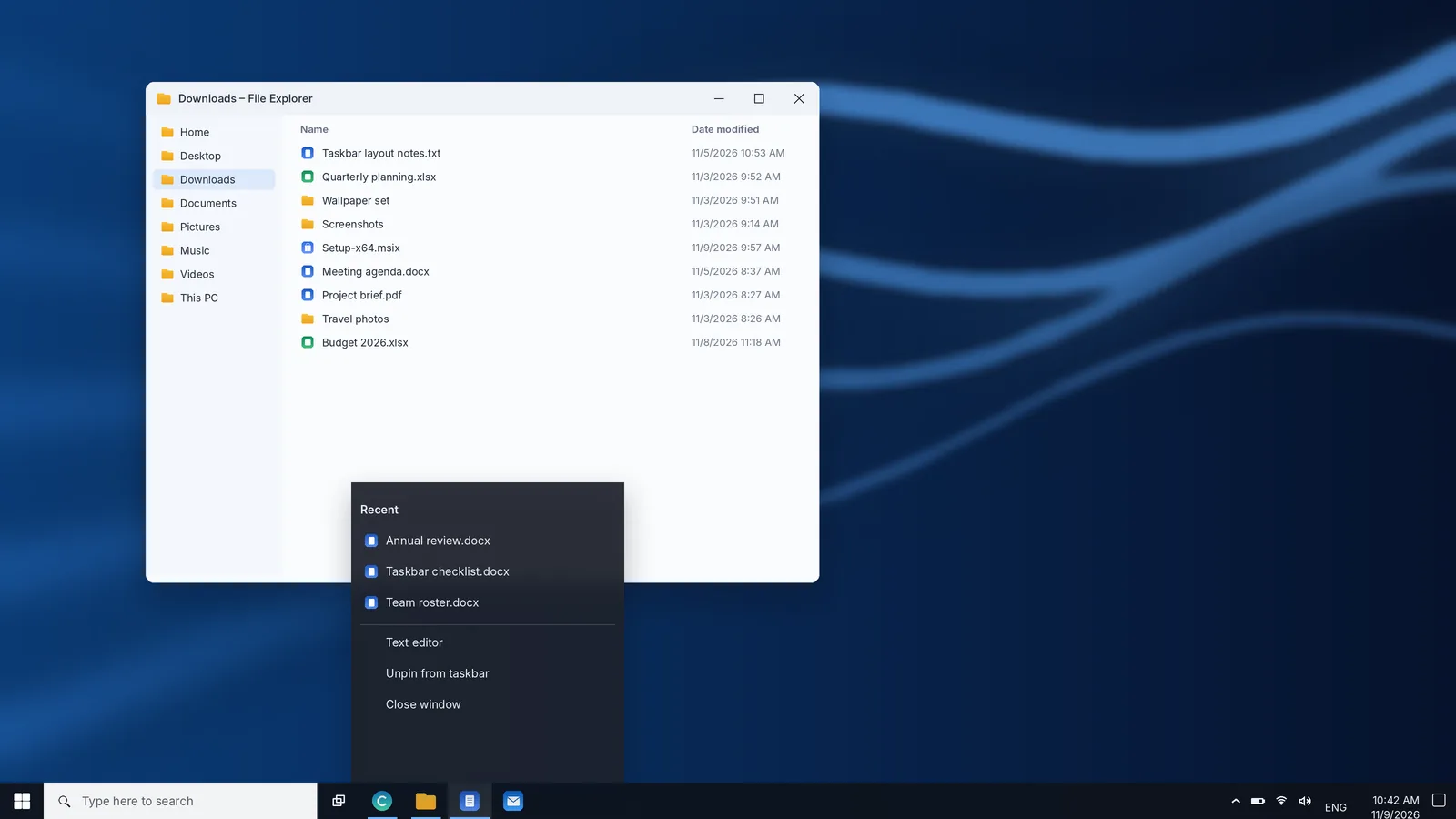
The taskbar in Windows 10 is the most flexible taskbar Microsoft has ever shipped. It can sit on any edge of the screen, grow to two or three rows, carry extra toolbars and shrink its buttons to save space. For millions of people it is still the bar they look at all day, even though Windows 10 has passed its end-of-support date. This guide goes through every part of the Windows 10 taskbar and every switch on its settings page, so you can set it up deliberately rather than living with the defaults.
Windows 10 reached the end of support on October 14, 2025. The taskbar features described here keep working, but security updates depend on Extended Security Updates. If your PC meets the Windows 11 requirements, see our guide to getting the Windows 11 taskbar the official way.
What the Windows 10 taskbar is made of
Before changing settings, it helps to know the names Windows uses, because the settings page refers to them constantly. From left to right on a default installation, the taskbar contains:
- Start button: the Windows logo at the far left. It opens the Start menu, and right-clicking it opens the Quick Link menu with Device Manager, Disk Management, Terminal or PowerShell, Task Manager, Settings and shutdown options.
- Search: by default a white box labelled "Type here to search". It finds apps, files, settings and web results.
- Task View button: shows every open window as a thumbnail and lets you manage virtual desktops.
- Pinned and running apps: shortcuts you have pinned, plus buttons for every program that is open. A coloured underline marks a running app.
- Notification area: the system tray near the clock, holding network, volume, power and background app icons, with a small up arrow for hidden icons.
- Clock and Action Center: the date and time, followed by the speech-bubble icon that opens Action Center with notifications and quick actions.
- Show desktop: a thin strip at the very right edge that minimizes everything when clicked.
Depending on your build and region, you may also see a Cortana button, a People button on older builds, or the News and interests weather widget. Each of these can be switched off from the taskbar's right-click menu.
Opening taskbar settings in Windows 10
There are three quick routes to the settings page. All of them lead to the same place: Settings › Personalization › Taskbar.
- Right-click an empty part of the taskbar and choose Taskbar settings at the bottom of the menu.
- Press Windows + I, choose Personalization, then select Taskbar in the left column.
- Type taskbar settings into Search and press Enter.
The right-click menu itself is also worth knowing, because several options live only there: Toolbars, the Search display mode, the Task View, Cortana and News and interests buttons, Cascade and Stack windows, Show the desktop, Task Manager and Lock the taskbar.
Every switch on the Windows 10 taskbar settings page
The settings page is long, and some options interact. Here is what each one does and when it is worth changing.
Lock the taskbar
When the taskbar is locked, you cannot drag it to another edge or resize it by accident. Unlock it when you want to move or resize the bar, then lock it again. Locking also hides the small dotted handles that appear beside toolbars.
Automatically hide the taskbar in desktop mode
Auto-hide slides the taskbar off screen until you point at the edge where it lives. It is useful on small laptop screens where every row of pixels counts. A matching option, Automatically hide the taskbar in tablet mode, applies only when Tablet mode is on.
Use small taskbar buttons
This reduces the height of the taskbar and the size of its icons. The clock then shows only the time, without the date. Small buttons make room for more apps in one row and suit high-resolution monitors.
Use Peek to preview the desktop
With Peek on, hovering over the Show desktop strip at the far right makes all windows transparent so you can glance at the desktop. Clicking the strip still minimizes everything, whether Peek is on or off.
Replace Command Prompt with Windows PowerShell
This changes which shell appears in the Quick Link menu when you right-click Start or press Windows + X. It does not remove Command Prompt from your system.
Show badges on taskbar buttons
Badges are the small counters or symbols that some apps draw on their taskbar icon, such as unread messages in a mail app. Turn badges off if you find them distracting.
Taskbar location on screen
Choose Bottom, Top, Left or Right. A vertical taskbar on the left or right is surprisingly practical on wide monitors because screens have more horizontal space than vertical space, and labelled buttons stay readable.
Combine taskbar buttons
This decides how windows from the same app are grouped:
| Option | What you see | Best for |
|---|---|---|
| Always, hide labels | One icon per app, no text labels | The cleanest look and the most space |
| When taskbar is full | Separate labelled buttons until space runs out, then grouping | People who switch between many windows of one app |
| Never | Every window gets its own labelled button | Wide or vertical taskbars with plenty of room |
Notification area
Two links control the tray. Select which icons appear on the taskbar lets you keep specific app icons visible next to the clock, or switch on Always show all icons in the notification area to remove the overflow arrow entirely. Turn system icons on or off controls Clock, Volume, Network, Power, Input Indicator, Location, Action Center, Touch keyboard, Windows Ink Workspace, Touchpad and Microphone, depending on your hardware.
Multiple displays
If more than one monitor is connected, you can show the taskbar on all displays, choose where buttons appear and decide how they combine on secondary taskbars. Those options are covered in detail later in this guide.
Moving and resizing the taskbar
You can move the taskbar in two ways. The precise way is the Taskbar location on screen menu described above. The quick way is to unlock the taskbar, press and hold an empty area of it, and drag it to another edge of the screen.
To resize it, unlock the taskbar, point at its inner edge until the pointer becomes a double arrow, and drag. A horizontal taskbar can grow to several rows of buttons; a vertical taskbar can be widened so that labels are easier to read. Lock the taskbar again when you are done.
If your taskbar suddenly looks like a thin line along an edge, someone has resized it to its minimum. Unlock it, point at the thin edge and drag it back out.
Start menu and search on the Windows 10 taskbar
The Windows 10 Start menu has three parts: a narrow rail with your account, Documents, Pictures, Settings and Power; an alphabetical list of installed apps; and a tile area that you can resize by dragging the menu's edge. Right-click a tile to resize it, turn live updates off or unpin it. Drag tiles together to create groups, and select the space above a group to give it a name.
Search has three display modes, chosen from the taskbar's right-click menu under Search: Hidden, Show search icon and Show search box. Even when the button is hidden, you can open Start and start typing, or press Windows + S. If you rarely search from the taskbar, switching to the icon saves a lot of horizontal space for your apps.
Pinned apps, running apps and Jump Lists
To pin an app, find it in Start, right-click it and choose More › Pin to taskbar, or drag it from Start onto the taskbar. If the app is already open, right-click its taskbar button and choose Pin to taskbar. Drag pinned icons left or right to change their order.
The order matters more than most people realize. The first ten pinned or running buttons respond to Windows + 1 through Windows + 0. Press the shortcut once to open or switch to that app, and press it again to cycle through its windows. Adding Shift opens a new instance, and Windows + Alt + a number opens the app's Jump List.
Jump Lists appear when you right-click a taskbar button. They show recent or frequent items, such as documents for a word processor or folders for File Explorer, plus app-specific tasks. Hover over an item and select the pin icon to keep it permanently in the Pinned section of that list. To clear an entry, right-click it and choose Remove from this list.
Toolbars: the forgotten Windows 10 taskbar feature
Toolbars are a Windows 10 feature that did not carry over to Windows 11, which makes them a good reason to learn them while you still use Windows 10. Right-click the taskbar, point to Toolbars and choose one:
- Address: a small box where you can type a web address, a folder path or a command.
- Links: shortcuts from your Favorites links folder.
- Desktop: a menu listing everything on your desktop, handy when windows cover it.
- New toolbar: turns any folder into a taskbar menu. Point it at a project folder and its contents are always one click away.
When the taskbar is unlocked, each toolbar has a handle you can drag to change its width or position. Lock the taskbar to tidy the handles away.
Notification area, clock and Action Center
The notification area is where background programs live: cloud storage clients, security tools, chat apps and hardware utilities. Too many visible icons push the clock to the edge and make the bar look busy, so keep only the ones you check often visible. You can also drag icons directly between the visible area and the overflow flyout behind the up arrow.
Click the clock to see a calendar, and the speech-bubble icon to open Action Center. Action Center combines notifications at the top with quick action buttons at the bottom: Wi-Fi, Bluetooth, Airplane mode, Focus assist, Night light, Project, Location and others depending on your hardware. Right-click the Action Center icon to turn Focus assist on quickly, and use Windows + A to open the panel from the keyboard.
To decide which quick actions appear, go to Settings › System › Notifications & actions and select Edit your quick actions. On the same page you can turn notifications from individual apps on or off.
Colours and transparency
Taskbar colour settings live on a different page: Settings › Personalization › Colors. Two options matter:
- Transparency effects makes the taskbar, Start and Action Center slightly see-through.
- Start, taskbar, and action center under Show accent color on the following surfaces paints the taskbar with your accent colour.
If the accent-colour checkbox is greyed out, set Choose your default Windows mode to Dark, either through the Custom colour option or by choosing Dark overall. The taskbar cannot take an accent colour while Windows itself is in light mode.
Using the Windows 10 taskbar on multiple monitors
With two or more displays connected, the Multiple displays section of taskbar settings gives you three controls:
- Show taskbar on all displays: puts a taskbar on every monitor. The clock and notification area stay on the main display.
- Show taskbar buttons on: All taskbars repeats every button everywhere; Main taskbar and taskbar where window is open keeps the main bar complete while each extra bar shows its own windows; Taskbar where window is open puts each button only on the monitor holding that window.
- Combine buttons on other taskbars: the same grouping choices as the main bar, applied separately to secondary taskbars.
The setup most people find natural is Taskbar where window is open, because each monitor then behaves like its own small desktop. To move a window between monitors from the keyboard, press Windows + Shift + ← or →. To choose which monitor is the main display, open Settings › System › Display, select the monitor and tick Make this my main display.
Tablet mode and touch
On 2-in-1 devices, Windows 10's Tablet mode changes the taskbar significantly: app icons can be hidden, the Start menu goes full screen and a back button appears. In Settings › System › Tablet you can decide whether Tablet mode switches on automatically and, in Change additional tablet settings, whether app icons are hidden on the taskbar. If you use a laptop without touch and your taskbar icons vanish, open Action Center and make sure the Tablet mode tile is off.
Keyboard shortcuts for the Windows 10 taskbar
| Shortcut | Action |
|---|---|
| Windows | Open or close Start |
| Windows + S | Open Search |
| Windows + Tab | Open Task View |
| Windows + 1–0 | Open or switch to the app in that taskbar position |
| Windows + T | Move focus through taskbar buttons |
| Windows + B | Move focus to the notification area |
| Windows + A | Open Action Center |
| Windows + X | Open the Quick Link menu |
| Windows + D | Show or hide the desktop |
| Ctrl + Shift + Esc | Open Task Manager |
When the Windows 10 taskbar misbehaves
Most taskbar problems in Windows 10 respond to the same first step: restart Windows Explorer. Press Ctrl + Shift + Esc, select More details if Task Manager opens in its compact view, find Windows Explorer on the Processes tab and choose Restart. The taskbar disappears for a moment and returns.
If the taskbar keeps freezing, sign out and back in, install any pending updates, and run sfc /scannow from an administrator command prompt to repair system files. For a taskbar that has vanished rather than frozen, our dedicated guide to a disappeared taskbar walks through auto-hide, full-screen apps, Tablet mode and display changes one by one.
A recommended Windows 10 taskbar setup
There is no single correct configuration, but this setup works well for most desktop and laptop users and makes good use of the features Windows 10 offers:
- Switch Search to Show search icon and hide the Cortana and News and interests buttons you do not use.
- Pin your five to eight daily apps and order them by how often you use them, so Windows + 1 opens your most-used tool.
- Set Combine taskbar buttons to When taskbar is full if you work with several documents at once.
- Keep only network, volume, power and one or two app icons visible in the notification area.
- On a wide monitor, try the taskbar on the left with labels shown. Many people never move it back.
- Lock the taskbar once everything is where you want it.
Ten minutes with these settings turns the Windows 10 taskbar into a control panel arranged around your own work.