
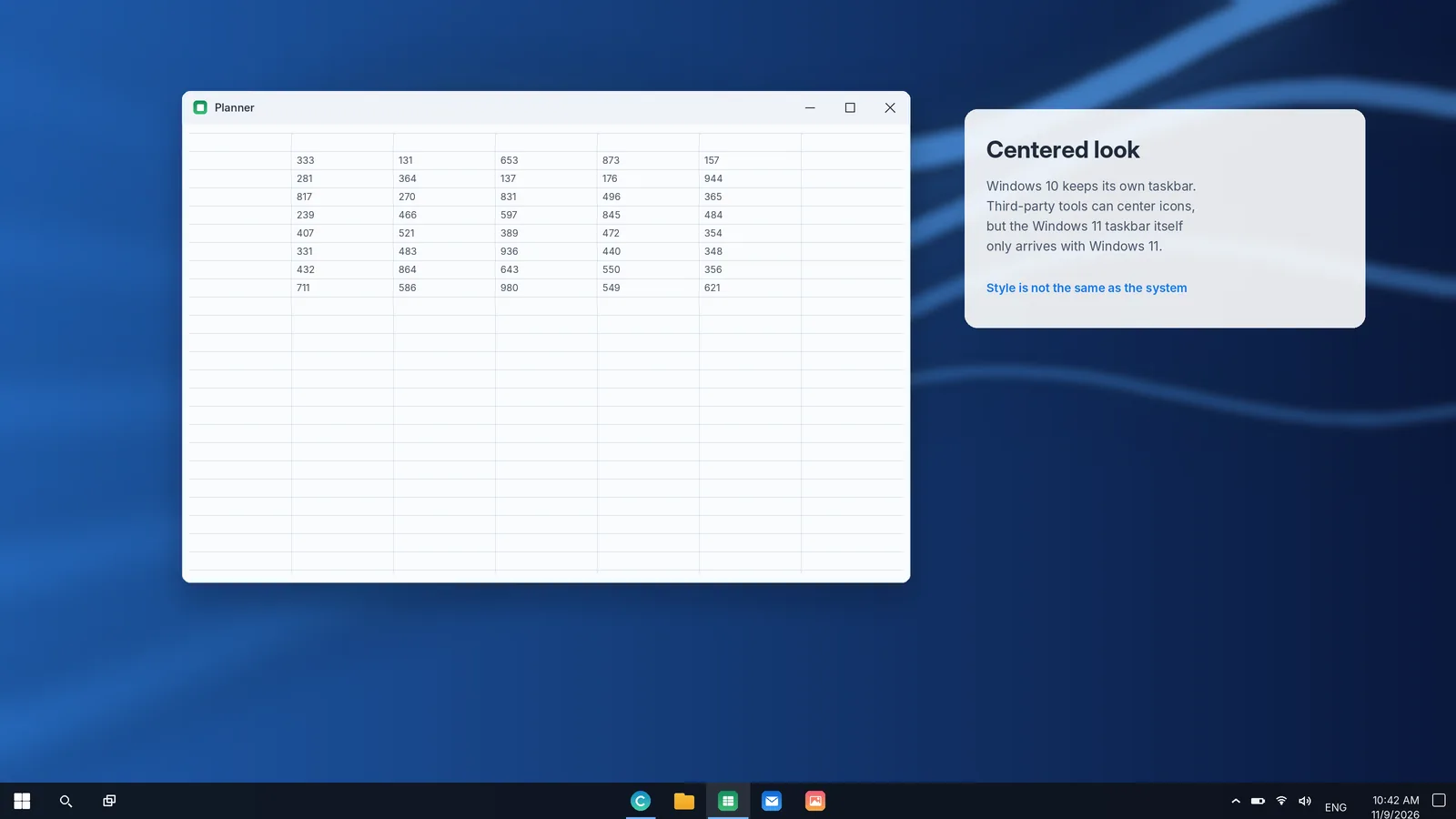
"Windows 11 taskbar for Windows 10" is one of the most searched taskbar phrases, and it usually means one of two things. Some people like the centered, airy look of Windows 11 but want to stay on Windows 10. Others hope to install the actual Windows 11 taskbar on top of Windows 10. The first is partly achievable. The second is not possible, and products that claim otherwise deserve suspicion. This guide explains what you can realistically do, which tools are reputable, what each approach costs in stability, and when upgrading is the better answer.
Why you cannot install the real Windows 11 taskbar on Windows 10
The taskbar is not a separate program. In both versions it is drawn by Windows Explorer, the shell process that also handles the desktop and File Explorer, and it depends on the frameworks, services and system components of the Windows version it ships with. Windows 11 rebuilt the taskbar on newer interface technology and tied it to new pieces such as Quick Settings and the Windows 11 notification center. None of that exists in Windows 10, and Microsoft does not offer the Windows 11 taskbar as a download or an optional component.
So any download that promises to "install the Windows 11 taskbar" on Windows 10 is doing one of three things: imitating the look with a separate program, replacing system files with modified copies, or bundling something you did not ask for. The first can be fine. The second and third are risky.
Packs that promise to turn Windows 10 into Windows 11 often replace or patch protected system files. They can break Windows updates, cause crashes and, from unofficial sites, carry malware. If you want the real Windows 11 experience, the safe route is upgrading through Microsoft.
What "the Windows 11 look" actually consists of
It helps to break the look into parts, because each one has a different answer on Windows 10:
| Windows 11 element | Possible on Windows 10? | How |
|---|---|---|
| Centered taskbar icons | Yes, closely | Toolbar trick or a centering utility |
| Translucent or blurred taskbar | Yes | Built-in transparency or a transparency utility |
| Floating, rounded Start menu | Approximate only | Commercial Start menu replacements |
| Quick Settings and the new notification center | No | Windows 10 keeps Action Center |
| Snap layouts on hover | No (basic Snap only) | Microsoft PowerToys FancyZones offers custom layouts |
| Rounded window corners | No | Not supported safely |
Centered icons and a cleaner, translucent bar are the parts people notice most, and both are realistic on Windows 10.
Option 1: Center icons with the built-in toolbar trick
Windows 10 has no centering setting, but its toolbar feature can push your app icons toward the middle without installing anything. It takes a few minutes and is completely reversible.
- Right-click an empty area of the taskbar and clear Lock the taskbar.
- Right-click the taskbar again, point to Toolbars and select Links. An empty Links toolbar with a small handle appears near the notification area.
- Drag the Links toolbar's handle all the way to the left, next to the Task View button. Your app icons now sit to the right of it, with a handle of their own.
- Drag the handle in front of your app icons toward the center of the screen until the icons look centered.
- Right-click the Links toolbar and clear Show Text and Show title so it becomes invisible.
- For a cleaner look, set Combine taskbar buttons to Always, hide labels and switch Search to an icon or hide it.
- Right-click the taskbar and choose Lock the taskbar.
The limitation is that the position is fixed. As you open more apps, the group grows to the right and is no longer perfectly centered. For many people that is perfectly acceptable; if it bothers you, a centering utility recalculates the position automatically.
To undo it, unlock the taskbar, right-click › Toolbars › Links to remove the toolbar, and lock it again.
Option 2: Center icons automatically with TaskbarX
TaskbarX is a well-known open-source utility, published on GitHub, that centers Windows 10 taskbar icons and keeps them centered as apps open and close. It can also animate the movement and apply transparent, blurred or acrylic styles to the bar. Its documentation states that it is built for Windows 10. On Windows 11 it only works together with tools that restore the Windows 10 taskbar, so it is a Windows 10 tool in practice.
Installing it carefully
- Open the project's GitHub page and go to its Releases section. Download the package for your system, usually the 64-bit portable ZIP.
- Extract it to a permanent folder such as
C:\Tools\TaskbarX. Do not run it from your Downloads folder, because the scheduled task it creates points at that location. - Run the configurator, choose a style, an animation and the icon position, then select Apply.
- Confirm that your icons center themselves and stay centered when you open another app.
The developer also offers a paid Microsoft Store edition that installs and updates through the Store, which some people find simpler and which supports the project.
Removing it
Use the configurator's option to stop TaskbarX and remove its startup task, then delete the folder. The project's documentation also describes a stop argument that returns icons to the left and resets the taskbar style. Restart Windows Explorer afterwards if anything looks out of place.
TaskbarX has not changed much in recent years. Because Windows 10 is no longer receiving feature updates, that matters less than it would for a Windows 11 tool, but read the release notes and open issues before installing.
Option 3: Add Windows 11-style transparency
A translucent taskbar is a large part of the Windows 11 feel. Windows 10 has a built-in version: open Settings › Personalization › Colors and turn on Transparency effects. To colour the bar as well, set the Windows mode to Dark and tick Start, taskbar, and action center.
For a fully clear or blurred bar, TranslucentTB is the most widely used open-source option. It is available from the Microsoft Store and from its GitHub releases page, supports Windows 10 and Windows 11, and lets you set different appearances for states such as a maximized window or an open Start menu. Installing from the Microsoft Store has the advantage of automatic updates.
Option 4: A Windows 11-style Start menu
The Start menu is the hardest part to imitate, because it is tightly integrated with the shell. Commercial Start menu replacements, such as Stardock's Start11, offer menu styles inspired by Windows 11 on Windows 10, along with taskbar adjustments. If you consider one, use the vendor's trial to confirm it suits you, buy only from the vendor's own website, and check its support policy for Windows 10 now that the operating system is out of mainstream support.
Free, open-source Start menu replacements tend to focus on classic layouts rather than the Windows 11 design, so they are a better fit for people who want to go the other way.
Option 5: Windows 11-style multitasking on Windows 10
If what you really like about Windows 11 is how it arranges windows, look at Microsoft PowerToys, Microsoft's own open-source set of utilities published on GitHub and in the Microsoft Store. Its FancyZones tool lets you design window layouts and snap windows into them by holding Shift while dragging. It is more flexible than Windows 11's Snap layouts and works on Windows 10.
Windows 10's own Snap features are worth revisiting too: drag a window to a screen edge or corner, or press Windows + arrow keys, and Snap Assist offers your other windows to fill the remaining space.
Comparing the approaches
| Approach | Effort | Risk | Result |
|---|---|---|---|
| Links toolbar trick | Five minutes | None | Centered icons that drift as apps open |
| TaskbarX | Ten minutes | Low, if downloaded from GitHub or the Store | Automatically centered icons with styles |
| Built-in transparency | One minute | None | Subtly translucent taskbar |
| TranslucentTB | Five minutes | Low, from the Store or GitHub | Clear, blurred or acrylic taskbar |
| Start menu replacement | Varies | Low to moderate | Windows 11-inspired Start menu |
| Transformation packs | High | High | Not recommended |
A Windows 11-style Windows 10 setup in six steps
If you want the closest practical result with the least risk, this combination works well and can be undone in minutes:
- Simplify the bar. Right-click the taskbar, set Search to Show search icon, and turn off the Cortana, People and News and interests buttons.
- Group buttons. In taskbar settings, set Combine taskbar buttons to Always, hide labels, which matches Windows 11's default icon-only style.
- Center the icons with the Links toolbar trick or TaskbarX.
- Add translucency with Transparency effects, or TranslucentTB for a stronger effect.
- Tidy the tray so only network, volume, battery and one or two app icons remain visible, the way Windows 11 presents it.
- Choose a soft, light wallpaper with depth. The Windows 11 look relies heavily on its wallpapers, and a well-chosen image does as much as any tool.
The result will not behave like Windows 11, but it will look calmer and more modern, and you can reverse every change.
Staying safe while customizing Windows 10
Because every shell tool hooks into Explorer, follow a simple routine for each one:
- Create a restore point in Control Panel › System › System Protection before installing.
- Download from the original source: the developer's GitHub repository or the Microsoft Store, not download portals.
- Install one tool at a time and check the taskbar before adding another, so you know which one causes any problem.
- Know the uninstall path before you start.
- Keep Task Manager in mind: if the taskbar freezes, Ctrl + Shift + Esc and restarting Windows Explorer gets you back.
The better long-term answer: upgrade if your PC qualifies
Windows 10 reached the end of support on October 14, 2025. Cosmetic tools can make it look more modern, but they cannot add the security updates, reliability fixes and new taskbar features that Windows 11 continues to receive. Those features include the taskbar position and size options Microsoft has been rolling out in 2026.
If your PC meets the requirements, the upgrade from a genuine Windows 10 licence is offered free through Windows Update. To check:
- Open Settings › Update & Security › Windows Update. If your PC is eligible and the upgrade has been offered, you will see an option to download and install Windows 11.
- If there is no offer, run Microsoft's PC Health Check app to see which requirement is not met. Common ones are TPM 2.0, Secure Boot and a supported processor.
- Some requirements are simply switched off in firmware. TPM and Secure Boot can often be enabled in the UEFI settings; check your PC maker's support pages for instructions.
Our Windows 11 taskbar download guide covers each official upgrade route step by step, including the Installation Assistant and the Media Creation Tool.
Frequently asked follow-ups
Will centering icons slow down Windows 10?
The toolbar trick has no performance cost. Utilities like TaskbarX run a small background process. On modern hardware the impact is negligible, but you can measure it in Task Manager.
Can I get Windows 11 widgets on Windows 10?
Not the Windows 11 Widgets board. Windows 10 has its own News and interests feed on the taskbar in supported builds and regions, which provides weather and headlines.
What about the reverse, the Windows 10 taskbar on Windows 11?
Open-source projects such as ExplorerPatcher restore a Windows 10-style taskbar on Windows 11. The same cautions apply in reverse: they patch Explorer, can be affected by Windows updates, and should be downloaded only from the project's official repository. Before reaching for one, try Windows 11's own Left alignment, its combine-buttons options and, where available, the new taskbar position setting. Together they bring back much of the Windows 10 feel without any extra software.
Do these tools still work now that Windows 10 is out of support?
Yes. Windows 10 itself has stopped changing, so tools that worked on its final builds generally keep working. The bigger concern is the operating system: without security updates, your PC becomes more exposed over time, whichever taskbar style you choose.
The bottom line
You can give Windows 10 a convincingly modern taskbar with centered icons and a translucent finish, using either a built-in trick or a reputable open-source tool. You cannot install the genuine Windows 11 taskbar, and anything that claims to do so should be avoided. If you love what Windows 11's taskbar offers, the safest and most complete way to get it is the free upgrade, provided your PC qualifies.