
The Windows taskbar is ultimately a row of icons, and most everyday taskbar frustrations come down to an icon: one that should be there but is not, one that appears blank, one that refuses to unpin, or a tray full of symbols you never asked for. This guide explains every kind of Windows taskbar icon, what its indicators mean, how to control each one in Windows 10 and Windows 11, and how to repair icons that go missing or display incorrectly.
The four kinds of taskbar icons
Windows treats taskbar icons differently depending on where they sit, so it helps to know which kind you are dealing with:
- Built-in buttons: Start, Search, Task View and, depending on version, Widgets, Cortana or News and interests. They are switched on and off in taskbar settings or the taskbar's right-click menu.
- Pinned app icons: shortcuts you have chosen to keep on the taskbar. You add, remove and reorder them yourself.
- Running app icons: buttons that appear automatically while a program is open and disappear when it closes, unless it is also pinned.
- System tray icons: small icons near the clock. Some belong to Windows (network, volume, battery), others to apps running in the background.
Reading the indicators under and on icons
Taskbar icons carry small signals that are easy to overlook:
| Indicator | Windows 10 | Windows 11 |
|---|---|---|
| App is running | Thin coloured line under the button | Short grey line under the icon |
| App is in focus | Lighter button background with underline | Longer blue line and highlighted background |
| Several windows open | Stacked button edges when combined | Thumbnails on hover; labels if combining is off |
| App needs attention | Button flashes orange | Icon background flashes and an indicator turns red |
| Badge | Small counter or symbol on the icon | Small counter or symbol on the icon |
| Progress | Green bar across the button | Progress shown along the icon's indicator |
Badges and attention alerts can be turned off. In Windows 11, use Show badges on taskbar apps and Show flashing on taskbar apps in Taskbar behaviors. In Windows 10, use Show badges on taskbar buttons.
Managing pinned app icons
Pin, unpin and reorder
- Pin from Start: right-click the app and choose Pin to taskbar (under More in Windows 10).
- Pin a running app: right-click its taskbar icon and choose Pin to taskbar.
- Unpin: right-click the icon and choose Unpin from taskbar.
- Reorder: drag icons left or right. The first ten positions respond to Windows + 1 to 0.
Change a pinned icon's image
For traditional desktop programs you can change the picture shown on the taskbar:
- Right-click the pinned icon. In the Jump List, right-click the app's name, then choose Properties.
- On the Shortcut tab, select Change Icon.
- Pick an icon from the list or browse to an
.icofile, then select OK twice. - If the taskbar still shows the old image, restart Windows Explorer from Task Manager.
Microsoft Store apps do not expose this option, because their icons are defined by the app package.
Pin folders, files and drives
The taskbar pins apps, not individual folders. To keep a folder within one click, pin File Explorer and then pin the folder inside File Explorer's Jump List: right-click the File Explorer icon, hover over a recent folder and select the pin. The same works for documents in other apps' Jump Lists.
Controlling built-in buttons
Windows 11 In Settings › Personalization › Taskbar › Taskbar items, choose how Search appears (hidden, icon, icon and label, or box) and switch Task view and Widgets on or off. Start cannot be removed.
Windows 10 Right-click the taskbar: Search offers Hidden, Show search icon or Show search box; separate entries toggle the Task View, Cortana and People buttons and News and interests, depending on your build.
Managing system tray icons
System tray icons fall into two groups: icons that Windows provides and icons that apps add. Each is managed separately.
App icons in the tray
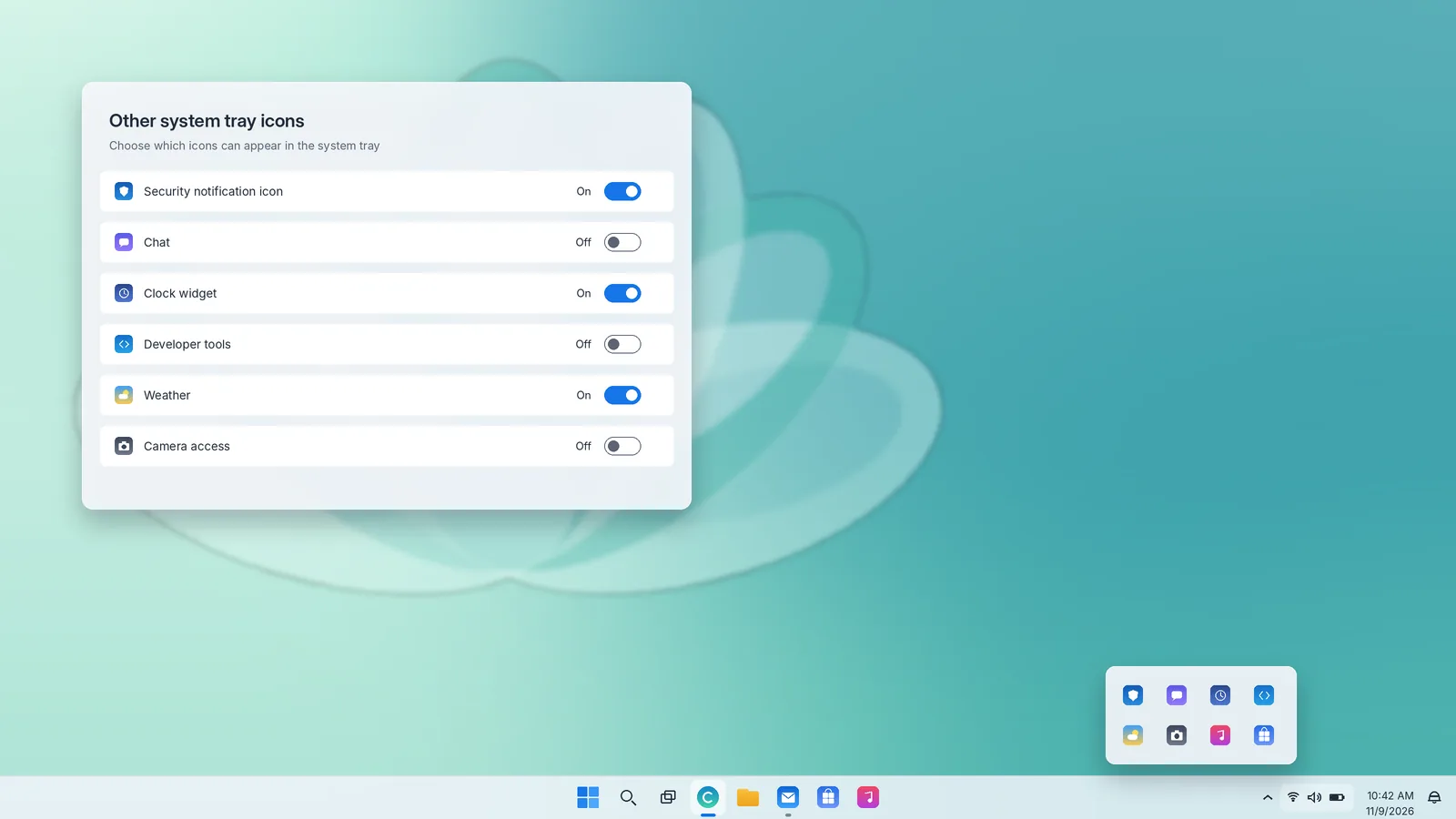
- Windows 11 Expand Other system tray icons in taskbar settings and switch each app on to keep it visible, or off to place it in the hidden icons flyout. Builds that include the Hidden icon menu switch let you remove the overflow arrow entirely.
- Windows 10 Select Select which icons appear on the taskbar, or turn on Always show all icons in the notification area to remove the overflow.
- Both: drag an icon from the flyout onto the taskbar to show it, or drag it into the flyout to hide it.
Windows' own tray icons
- Windows 11 Network, volume and battery are permanent parts of the Quick Settings button. Under System tray icons you can show the Pen menu, Touch keyboard and Virtual touchpad.
- Windows 10 Turn system icons on or off controls Clock, Volume, Network, Power, Input Indicator, Location, Action Center and touch-related icons.
Remember that hiding a tray icon does not close the app. To stop an app launching at sign-in, turn it off in Settings › Apps › Startup.
Icon size and sharpness
Taskbar icons follow your display scaling. If they look too small, too large or blurry, start in Settings › System › Display and check that each monitor uses its recommended resolution and a sensible scale.
- Windows 10 Use small taskbar buttons shrinks icons and the bar.
- Windows 11 Recent updates are adding a smaller taskbar option in Taskbar behaviors; on earlier builds the size follows display scaling only.
Blurriness after changing scale or connecting a monitor usually clears after you sign out and back in. If one app's icon stays fuzzy, it may simply ship a low-resolution icon; updating the app often fixes it.
Fixing missing taskbar icons
Work through these in order and stop when the icons return.
- Check the settings above. A built-in button or tray icon may simply be switched off.
- Check the hidden icons flyout. Select the up arrow; the icon may have been moved there.
- Restart Windows Explorer. Press Ctrl + Shift + Esc, select Windows Explorer and choose Restart.
- Windows 10 Turn off Tablet mode, which can hide app icons, from Action Center.
- Check the app is still installed. If an app was uninstalled or moved, its pinned icon can vanish or stop working. Reinstall it and pin it again.
- Restart the PC and install pending updates.
If tray icons for network, volume or battery are missing in Windows 11, restarting Explorer usually restores them. If not, run sfc /scannow from Terminal (Admin).
Fixing blank, white or wrong taskbar icons
A pinned app that shows a blank white page, a generic icon or another app's picture usually points to a stale icon cache. Windows stores icon images in a cache so it does not have to read them from every program each time, and that cache can become out of date.
Refresh first
- Restart Windows Explorer from Task Manager.
- Unpin the affected app, sign out and back in, then pin it again from Start.
Rebuild the icon cache
If refreshing does not help, rebuild the cache. This is safe; Windows recreates the files automatically.
- Save your work and close open File Explorer windows.
- Open Command Prompt or Terminal as a normal user.
- Run
ie4uinit.exe -show. This asks Windows to refresh its icon cache, and on many PCs it fixes the problem immediately. - If icons are still wrong, open Task Manager, end Windows Explorer, then in the terminal run
cd /d %localappdata%\Microsoft\Windows\Explorerfollowed bydel iconcache*. If some files are reported in use, that is normal. - In Task Manager, choose Run new task, type
explorer.exeand press Enter. Restart the PC to let Windows rebuild the cache cleanly.
Repair Store apps
For a Microsoft Store app whose icon is wrong or missing, open Settings › Apps › Installed apps (Windows 11) or Apps & features (Windows 10), select the app, open Advanced options and choose Repair. Reset is the stronger option, but it clears the app's data.
When an icon will not pin or unpin
- "Pin to taskbar" is missing: run the app, then right-click its taskbar button. Some apps can be pinned only that way.
- An icon cannot be unpinned: try unpinning from Start (right-click the app › Unpin from taskbar). If that fails, restart Explorer and try again.
- Pins reset after every restart: on work or school devices, an administrator policy may define the taskbar layout. Ask your IT team before changing anything.
- A pin opens the wrong app or nothing at all: the shortcut's target has moved. Unpin it and pin the app again from Start.
Icons on multiple monitors
With a taskbar on each display, you choose where running-app icons appear: on every taskbar, on the main taskbar plus the one where the window is open, or only where the window is open. In Windows 11 this is When using multiple displays, show my taskbar apps on; in Windows 10 it is Show taskbar buttons on. Pinned icons always appear on the main taskbar. With the All taskbars option they appear on every taskbar.
The system tray icons, clock and notifications stay on the main display in both versions. If tray icons seem to have vanished after you rearranged monitors, check which display is set as main in Settings › System › Display.
Navigating taskbar icons with the keyboard
Every taskbar icon is reachable without a mouse, which is faster once learned and essential for many people who use assistive technology:
- Windows + T puts focus on the first taskbar app; use the arrow keys to move along the row and Enter to open or switch.
- Windows + B moves focus to the system tray; use the arrow keys to move between tray icons and Enter to open one.
- With an icon focused, press Shift + F10 or the Menu key to open its right-click menu, including the Jump List.
- Windows + number opens the pinned app in that position; Windows + Alt + number opens its Jump List.
- Esc returns focus to the desktop or the active window.
Taskbar icons and accessibility
If taskbar icons are hard to see, adjust the system rather than individual icons. In Settings › Accessibility, Contrast themes (Windows 11) or High contrast (Windows 10) redraw the taskbar with strong outlines and colours. Increasing display scale in Settings › System › Display enlarges taskbar icons along with everything else, and Text size in Accessibility enlarges labels and the clock without changing layout.
Screen readers such as Narrator announce each taskbar button's name and state, for example whether an app is running or has several windows open. Clear names come from the apps themselves, so if one is announced oddly, updating the app often helps.
Restoring icons after moving to a new PC
Pinned taskbar icons are tied to installed apps, so they do not simply follow you to a new computer the way files do. After setting up a new PC or a fresh installation, install your apps first, then pin them in your preferred order. Windows backup options that restore apps can bring Store apps back, but desktop programs must be installed again. Taking a screenshot of your old taskbar before switching makes it easy to recreate the same order.
Keeping your taskbar icons useful
A few principles keep the icon area efficient over time:
- Pin what you open daily, not what you open occasionally. Start and Search are fast enough for everything else.
- Group by task. Place communication apps together, then creative tools, then utilities, so your eye learns the zones.
- Review the tray every few months. Installers add tray icons constantly; prune the ones that no longer earn their place.
- Turn off badges for noisy apps and keep them for the ones that genuinely replace checking manually.
- Use the shortcuts. Once your icons are in a stable order, Windows + number is faster than any mouse movement.
Quick reference
| Task | Windows 10 | Windows 11 |
|---|---|---|
| Show or hide app tray icons | Select which icons appear on the taskbar | Other system tray icons |
| Show or hide system icons | Turn system icons on or off | System tray icons (pen, touch keyboard, touchpad) |
| Hide Search button | Right-click taskbar › Search › Hidden | Taskbar items › Search › Hide |
| Turn off badges | Show badges on taskbar buttons | Show badges on taskbar apps |
| Smaller icons | Use small taskbar buttons | Smaller taskbar (newer builds) |
| Fix blank icons | Restart Explorer, then rebuild icon cache | Restart Explorer, then rebuild icon cache |
Taskbar icons may be small, but they are where you start almost every task. A few minutes spent organising them pays back every time you reach for the taskbar.