
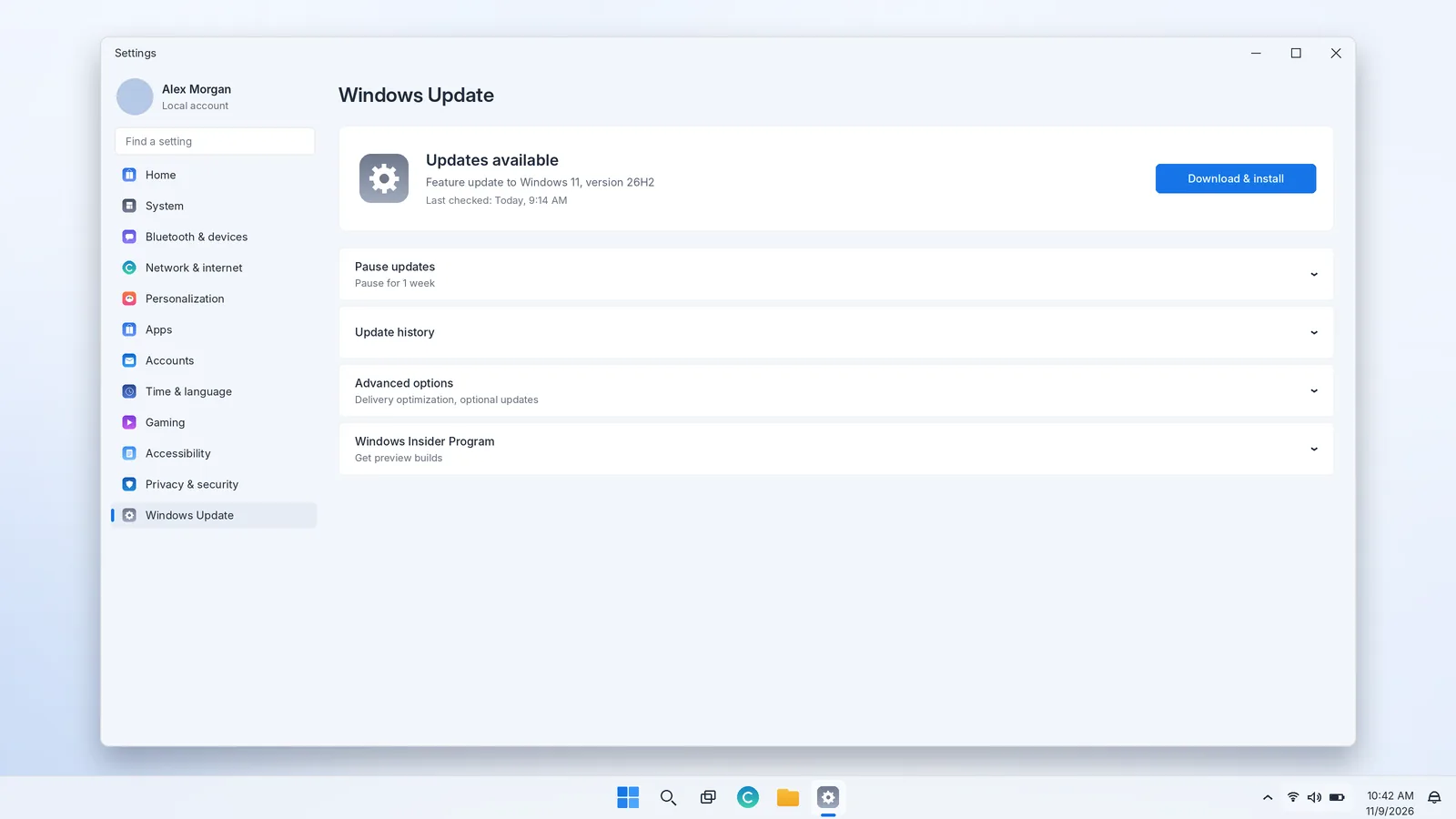
People search for a "Windows 11 taskbar download" for two reasons. Some are on Windows 10 and want the centered, modern Windows 11 taskbar. Others are already on Windows 11 but have read about newer taskbar features, such as moving the taskbar to another edge, and cannot find them. Both have the same honest answer: the Windows 11 taskbar is not a standalone download. It comes with Windows 11 and improves through Windows Update. This guide shows how to get it the official way, how to check your PC first, and how to make sure you receive the latest taskbar features.
Websites offering the Windows 11 taskbar as a separate download for Windows 10 are not offering Microsoft software. They typically distribute theme packs, modified system files or bundled adware. The only genuine sources are Windows Update and Microsoft's own Windows 11 download page.
Part 1: Getting the Windows 11 taskbar on a Windows 10 PC
On Windows 10, getting the Windows 11 taskbar means upgrading to Windows 11. For PCs with a genuine Windows 10 licence that meet the hardware requirements, the upgrade is free. Windows 10 reached the end of support on October 14, 2025, so upgrading also brings your PC back to a version that receives regular security and feature updates.
Step 1: Check whether your PC can run Windows 11
Windows 11 has stricter requirements than Windows 10. In summary, Microsoft requires:
| Component | Minimum requirement |
|---|---|
| Processor | 1 GHz or faster with two or more cores, on Microsoft's list of compatible 64-bit processors |
| Memory | 4 GB RAM |
| Storage | 64 GB or larger storage device |
| System firmware | UEFI, Secure Boot capable |
| TPM | Trusted Platform Module version 2.0 |
| Graphics | Compatible with DirectX 12 or later with a WDDM 2.0 driver |
| Display | High definition (720p), larger than 9 inches diagonally |
| Internet and account | Windows 11 Home setup requires an internet connection and a Microsoft account |
Microsoft's specifications page has the full and current list. The easiest way to check your own PC is Microsoft's PC Health Check app, which tells you whether your PC qualifies and, if it does not, which requirement fails.
If your PC does not pass
- TPM 2.0 or Secure Boot reported as missing: many PCs have these features but ship with them switched off. They can be enabled in the UEFI firmware settings. Your PC or motherboard maker's support site explains how for your model.
- Unsupported processor: this cannot be changed in settings. Microsoft does not support Windows 11 on PCs that fail the processor requirement, and workarounds that bypass checks leave the PC in an unsupported state.
- Low storage: free up space with Settings › System › Storage, or use external storage during the upgrade if the installer offers it.
Step 2: Prepare before you upgrade
- Back up your files to OneDrive, an external drive or both. The upgrade keeps files by default, but a backup protects you if anything goes wrong.
- Install all pending Windows 10 updates and restart.
- Note important software and licences, especially older programs and specialist hardware drivers, and check the vendors support Windows 11.
- Uninstall taskbar modification tools. Shell utilities written for Windows 10 can conflict with Windows 11 and are best removed first.
- Plug in your laptop and allow an hour or more without interruption.
Step 3: Choose an official upgrade method
Method A: Windows Update (recommended)
- Open Settings › Update & Security › Windows Update.
- Select Check for updates.
- If the upgrade is offered, you will see that the upgrade to Windows 11 is ready. Select Download and install.
- Follow the prompts and restart when asked.
This is the smoothest route because Microsoft offers the upgrade only when your hardware and drivers are known to be compatible.
Method B: Windows 11 Installation Assistant
If your PC qualifies but the offer has not appeared in Windows Update, go to Microsoft's official Windows 11 download page at microsoft.com/software-download/windows11, download the Installation Assistant, run it and follow the steps. It upgrades the PC you are using while keeping your files and apps.
Method C: Media Creation Tool or ISO
The same Microsoft page offers the Media Creation Tool to build a bootable USB drive, and a downloadable disk image (ISO). These are best for clean installations, upgrading several PCs or creating recovery media. A clean installation erases the drive, so back up first and keep your product key or digital licence details handy.
Step 4: After the upgrade
The first time you sign in to Windows 11 you will see the new taskbar with centered icons. A few first steps help you settle in:
- Prefer the left? Settings › Personalization › Taskbar › Taskbar behaviors › Taskbar alignment › Left.
- Re-pin your apps. Most pins carry over, but check and reorder them.
- Learn the new flyouts: Windows + A for Quick Settings and Windows + N for notifications and the calendar.
- Install updates. Run Windows Update again immediately; there are usually further updates, including taskbar improvements.
Changing your mind
For a limited period after upgrading, usually ten days, you can return to Windows 10 from Settings › System › Recovery › Go back. After that window closes, Windows removes the previous installation's files and going back requires a reinstall. Keep in mind that Windows 10 no longer receives regular support.
Part 2: Getting the newest taskbar features on Windows 11
If you already run Windows 11 and are looking for a feature you have read about, you do not need a download. You need the right Windows 11 version and, sometimes, a little patience. Microsoft has spent 2026 bringing back long-requested taskbar options, including a Taskbar position setting with Top, Bottom, Left and Right, and a smaller taskbar option. These are delivered through Windows updates and enabled gradually.
Step 1: Check your Windows 11 version
Press Windows + R, type winver and press Enter. The window shows your version (such as 25H2 or 26H2) and build number. Then check Microsoft's release information to see whether your version is still supported; each Windows 11 version has a fixed support period, and running a supported version keeps both security fixes and new features flowing.
Step 2: Update through Windows Update
- Open Settings › Windows Update and select Check for updates.
- Install monthly updates and, if offered, the latest feature update for Windows 11.
- Turn on Get the latest updates as soon as they're available if you want new features as soon as they are ready for your device, rather than later in the rollout.
- Restart when prompted.
Step 3: Look for the feature in Settings
New taskbar options appear in Settings › Personalization › Taskbar, mostly under Taskbar behaviors. If a feature still does not appear after updating, it is most likely in a staged rollout and will reach your device over the following weeks. Organisations can also delay features on managed PCs, so on a work device ask your IT department.
Want features before everyone else?
The Windows Insider Program, in Settings › Windows Update › Windows Insider Program, provides preview builds where Microsoft tests new taskbar features before general release. Preview builds can be less stable, so use them on a secondary PC or only if you are comfortable troubleshooting.
How the Windows 11 taskbar has evolved, version by version
Knowing which Windows 11 version introduced a feature explains why two PCs can show different taskbars. The broad timeline:
| Version | Notable taskbar changes |
|---|---|
| 21H2 (launch, 2021) | Centered icons with a Left option, Quick Settings, the new notification center and a fixed bottom position |
| 22H2 (2022) | Drag and drop onto taskbar apps returned, plus a taskbar overflow menu when there are many open apps |
| 23H2 (2023) | Ungrouped buttons with labels returned through Combine taskbar buttons and hide labels, and an optional End task entry in the taskbar menu |
| 24H2 and 25H2 | Refinements to Quick Settings, the system tray and Search, delivered through regular updates |
| 2026 updates, including 26H2 | A Taskbar position setting (Top, Bottom, Left, Right) and a smaller taskbar option, rolling out gradually |
Because Microsoft now ships many features through monthly updates and turns them on in stages, two PCs on the same version can still differ for a few weeks. That is normal.
Licensing and cost
The upgrade to Windows 11 is free for PCs running a genuine, activated copy of Windows 10 that meet the requirements. Your Windows 10 Home licence becomes a Windows 11 Home licence, and Pro becomes Pro. The taskbar is identical across Home and Pro; the editions differ in business and security features such as BitLocker management and Group Policy, not in taskbar options.
If you are building a PC or replacing an unlicensed installation, buy a Windows 11 licence from the Microsoft Store or an authorised retailer. Very cheap "lifetime keys" from marketplaces are frequently resold volume or retail keys that can be deactivated later.
Verifying what you downloaded from Microsoft
If you download the Windows 11 ISO, Microsoft's download page provides a way to verify the file's integrity with published hash values. In PowerShell, run Get-FileHash followed by the path to the ISO and compare the result with the value Microsoft lists for your language and edition. A match confirms the file was not corrupted or altered in transit. The Installation Assistant and Media Creation Tool are signed by Microsoft; right-click either file, choose Properties and open Digital Signatures to confirm the signer is Microsoft Corporation before running it.
Common problems during the upgrade
| Problem | What to try |
|---|---|
| No upgrade offer in Windows Update | Run PC Health Check; if eligible, use the Installation Assistant |
| "This PC doesn't currently meet Windows 11 system requirements" | Enable TPM 2.0 and Secure Boot in firmware, or check the processor list |
| Not enough space | Free space via Settings › System › Storage or use the external storage option |
| Upgrade fails and rolls back | Disconnect unneeded USB devices, update drivers, uninstall third-party security or shell tools, then retry |
| Taskbar looks wrong after upgrading | Restart Windows Explorer, install updates, and remove old taskbar utilities |
What about third-party "Windows 11 taskbar" tools?
On Windows 10, open-source utilities can center your icons or make the taskbar translucent, giving a Windows 11-like look without upgrading. They change the appearance only: there is no Quick Settings, no new notification center and no Windows 11 security model. If that is all you need, our guide to the Windows 11 taskbar for Windows 10 explains the options and their limits. If you want the real Windows 11 taskbar and the protection of a supported system, upgrade through Microsoft.
Quick answers
Is the Windows 11 taskbar available as an app in the Microsoft Store?
No. The Store lists third-party utilities that change the taskbar's appearance, but the Windows 11 taskbar itself is only part of Windows 11.
Will upgrading delete my files?
An in-place upgrade through Windows Update or the Installation Assistant keeps your files, apps and most settings. Only a clean installation from USB or ISO erases the drive. Back up either way.
How long does the upgrade take?
Typically between thirty minutes and a couple of hours, depending on your internet connection, storage speed and the amount of data on the PC. The PC restarts several times along the way.
Do I need a Microsoft account for the upgrade?
An in-place upgrade keeps the account you already use. A fresh setup of Windows 11 Home requires an internet connection and a Microsoft account during setup, while Windows 11 Pro offers more options for organisation-managed sign-in.
Can I keep the Windows 10 look after upgrading?
Partly. Left alignment, ungrouped buttons with labels and, on recent builds, the Taskbar position setting bring Windows 11 much closer to the Windows 10 layout without any extra software.
Summary
- The Windows 11 taskbar is part of Windows 11. There is no separate, official taskbar download.
- On Windows 10, check eligibility with PC Health Check and upgrade free through Windows Update, the Installation Assistant or the Media Creation Tool.
- Back up first, remove old shell tools, and use the ten-day Go back option if you need to reverse the upgrade.
- On Windows 11, new taskbar features such as position and size options arrive through Windows Update and roll out gradually.
- Download Windows only from Microsoft. Anything else claiming to be the Windows 11 taskbar is not genuine.