
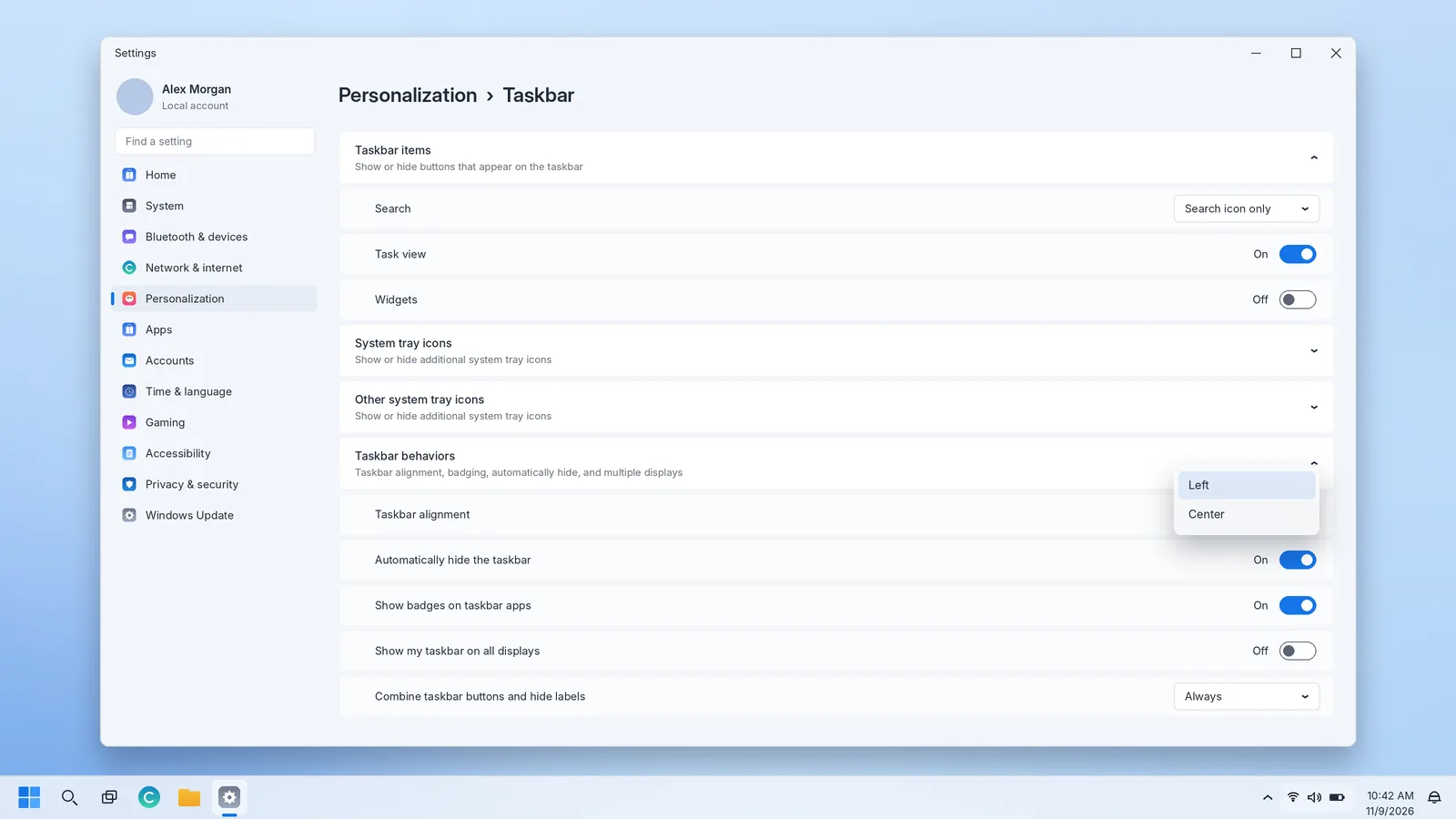
Windows taskbar customization is less about decoration than about saving effort. A taskbar arranged around your own habits cuts out small trips through Start and File Explorer dozens of times a day. This playbook works through customization in a practical order: layout first, then apps, then the system tray, then appearance and behaviour. Each step shows exactly where the setting lives in Windows 10 and in Windows 11, because the two versions do not offer the same options.
Settings marked Windows 11 or Windows 10 exist only in that version. Where a step applies to both, the path is given for each. Some Windows 11 options are being rolled out gradually through updates, so if you cannot find one, check Windows Update first.
Step 1: Decide on a layout before touching any settings
The most useful customization decisions are about your screen, not your taste. Ask yourself three questions before you start:
- How wide is your display? On a 13-inch laptop, every pixel of height matters. On a 34-inch ultrawide, horizontal space is plentiful and the far corners are a long way from the center.
- How many apps do you keep open? If it is two or three, icon-only buttons are fine. If it is ten windows across four apps, you need labels or previews to tell them apart.
- Do you use more than one monitor? If so, decide early whether each monitor should have its own taskbar.
With those answers in mind, the rest of the choices follow naturally.
Step 2: Set the alignment and position
Icon alignment
Windows 11 Open Settings › Personalization › Taskbar › Taskbar behaviors › Taskbar alignment and choose Center or Left. Centered icons are easier to reach on wide screens. Left alignment keeps Start fixed in the corner, which builds muscle memory faster because Start no longer shifts as apps open and close.
Windows 10 Icons are always left-aligned and there is no built-in centering option. Our guide to the Windows 11 taskbar for Windows 10 explains what third-party tools can do here and what to watch out for.
Taskbar position
Windows 10 In taskbar settings, use Taskbar location on screen to choose Bottom, Top, Left or Right. You can also unlock the taskbar and drag it.
Windows 11 Earlier releases keep the taskbar at the bottom. Recent updates are adding a Taskbar position option in Taskbar behaviors with Bottom, Top, Left and Right. Start, Search and other flyouts then open from that edge.
A vertical taskbar is worth trying on wide monitors. Most content, such as documents, web pages and code, is taller than it is wide, so giving up some horizontal space costs less than giving up height.
Step 3: Choose the size and button style
Windows 10 Turn on Use small taskbar buttons for a slimmer bar, or unlock the taskbar and drag its edge to make it taller. Combine taskbar buttons offers Always, hide labels, When taskbar is full and Never.
Windows 11 Use Combine taskbar buttons and hide labels (version 23H2 and later) with the same three choices, plus a separate option for taskbars on other displays. Where your build offers a smaller taskbar option, it reduces the bar's height and icon size.
| If you… | Choose |
|---|---|
| Keep few windows open and want a clean bar | Always combine, hide labels |
| Juggle several documents in one app | When taskbar is full |
| Use a vertical or very wide taskbar | Never combine |
| Work on a small laptop screen | Small buttons (Windows 10) or smaller taskbar (Windows 11, where available) |
Step 4: Curate your pinned apps
Pinned apps are the heart of taskbar customization. The aim is a short, ordered row of the tools you open every day, not a second Start menu.
Pinning and unpinning
- From Start: right-click an app and choose Pin to taskbar. In Windows 10 it may sit under More.
- From a running app: right-click its taskbar button and choose Pin to taskbar.
- To remove: right-click the icon and choose Unpin from taskbar.
Ordering for speed
Drag icons into the order you use them. The position becomes a shortcut: Windows + 1 opens or switches to the first app, Windows + 2 to the second, up to Windows + 0 for the tenth. Put your most-used app first and the shortcut becomes second nature within a day.
Pin files and folders through Jump Lists
You can keep specific documents and folders close too. Right-click a pinned app, hover over a recent item and select the pin icon. File Explorer's Jump List is especially useful for pinning project folders you visit constantly.
Pin websites
Modern browsers can install a website as an app or create a shortcut that opens it in its own window, and that window can then be pinned like any other app. Look in your browser's menu for options such as Apps › Install this site as an app or More tools › Pin to taskbar; the wording varies by browser and version.
Step 5: Show only the taskbar items you use
Windows 11 Under Taskbar items, choose how Search appears (Hide, Search icon only, Search icon and label, or Search box) and switch Task view and Widgets on or off. Keyboard shortcuts keep working when buttons are hidden: Windows + S for Search, Windows + Tab for Task View, Windows + W for Widgets.
Windows 10 Right-click the taskbar and use Search (Hidden, Show search icon, Show search box), Show Task View button, Show Cortana button and News and interests where available. Hiding the large search box alone frees a lot of space for apps.
Step 6: Tidy the system tray
A crowded tray pushes the clock aside and turns status icons into noise. Keep visible only the icons whose appearance tells you something: sync status, a VPN connection, a recording indicator.
Windows 11 Expand Other system tray icons and switch each app on (always visible) or off (hidden behind the arrow). On builds that offer it, the Hidden icon menu switch removes the overflow arrow altogether. Under System tray icons, choose whether the Pen menu, Touch keyboard and Virtual touchpad appear.
Windows 10 Use Select which icons appear on the taskbar for app icons and Turn system icons on or off for Clock, Volume, Network, Power, Action Center and others.
In both versions you can drag icons between the visible tray and the overflow flyout. That is often quicker than using Settings.
Hiding a tray icon does not stop the program. To stop an app from starting with Windows, use Settings › Apps › Startup or the Startup apps page in Task Manager.
Step 7: Configure auto-hide, badges and attention alerts
Auto-hide gives apps the full screen height and brings the taskbar back when you point at its edge. It works best for people who use keyboard shortcuts heavily.
- Windows 11 Taskbar behaviors › Automatically hide the taskbar.
- Windows 10 Automatically hide the taskbar in desktop mode, plus a tablet mode version.
Badges show unread counts and status on app icons. Keep them if they replace checking an app; turn them off if they pull your attention away from your work. In Windows 11, Show flashing on taskbar apps controls whether apps can make their buttons flash when they want attention, which also stops an auto-hidden taskbar from popping up.
Step 8: Colour, transparency and themes
Appearance settings live in Settings › Personalization › Colors in both versions.
- Choose your mode. To colour the taskbar, Windows mode must be Dark (choose Dark, or Custom with Windows mode set to Dark).
- Pick an accent colour manually or let Windows choose one from your wallpaper.
- Windows 11 Turn on Show accent color on Start and taskbar.
Windows 10 Tick Start, taskbar, and action center. - Turn Transparency effects on or off to taste. Turning it off can make text slightly easier to read and uses marginally fewer resources on older hardware.
Contrast themes, in Settings › Accessibility, override these colours with high-contrast palettes for people who need stronger visual separation.
Step 9: Set up multiple monitors properly
Multi-monitor setups benefit most from deliberate customization.
| Setting | Windows 10 | Windows 11 |
|---|---|---|
| Taskbar on every screen | Show taskbar on all displays | Show my taskbar on all displays |
| Where app buttons appear | Show taskbar buttons on | When using multiple displays, show my taskbar apps on |
| Grouping on extra screens | Combine buttons on other taskbars | Combine taskbar buttons and hide labels on other taskbars |
For most people the best choice is Taskbar where window is open: each monitor lists only its own windows, so you never click a button on one screen and find the window opening on another. Set your main display in Settings › System › Display. The main display keeps the system tray and clock.
Step 10: Lock it in and learn the shortcuts
In Windows 10, right-click the taskbar and choose Lock the taskbar so nothing moves accidentally. Then learn the handful of shortcuts that make a customized taskbar fast:
- Windows + number: open or switch to a pinned app.
- Windows + Alt + number: open that app's Jump List.
- Windows + T: move through taskbar buttons with the arrow keys.
- Windows + B: jump to the system tray.
- Windows + D: show the desktop.
Customizing for touch screens and 2-in-1 devices
On touch devices, the taskbar needs larger targets and fewer precise gestures.
- Windows 11 On supported 2-in-1s, Taskbar behaviors includes Optimize taskbar for touch interactions when this device is used as a tablet. When the keyboard is detached, the taskbar collapses to give more room and expands with a swipe up from the bottom edge.
- Windows 10 Settings › System › Tablet controls when Tablet mode turns on and whether app icons are hidden on the taskbar while it is active.
- Both: show the Touch keyboard icon in the tray so text entry is always one tap away, and avoid small taskbar buttons on touch-first devices.
Customizing for accessibility
Good taskbar customization also means making it easier to see and reach.
- Contrast themes (Windows 11) and High contrast (Windows 10), in Settings › Accessibility, give the taskbar strong outlines and colours.
- Display scale in Settings › System › Display enlarges taskbar icons along with everything else; Text size enlarges labels and the clock.
- Turn off transparency for clearer contrast between the taskbar and the wallpaper behind it.
- Show labels by setting combine buttons to Never, so each window has a readable name rather than only an icon.
- Learn Windows + T and Windows + B for full keyboard access to taskbar buttons and the tray.
Ready-made taskbar setups
The focused laptop
Search icon only, Widgets off, smaller taskbar or auto-hide, five pinned apps, two visible tray icons. It maximizes working space and keeps distractions low.
The document worker
Left alignment, When taskbar is full grouping so window titles show, Jump Lists with pinned project files and File Explorer pinned first.
The multi-monitor desk
Taskbar on all displays, apps shown only where their windows are open, labels shown on the secondary screens, and Windows + Shift + arrow keys to move windows between screens.
The wide-screen vertical setup
Taskbar on the left (Windows 10, or Windows 11 builds with Taskbar position), labels shown, apps pinned in groups by task. It leaves the full screen height for documents and code.
Customization that goes beyond Settings
Some people want effects Windows does not offer, such as a fully transparent bar, centered icons on Windows 10 or a classic taskbar on Windows 11. Third-party utilities exist for these, and the reputable ones are open source and published on GitHub. Keep three things in mind:
- They modify how Explorer draws the taskbar, so a Windows update can temporarily break them.
- Download them only from the developer's official page or the Microsoft Store, never from bundled installer sites.
- Create a restore point first, and know how to uninstall the tool if the taskbar misbehaves.
Our Windows taskbar download guide lists well-known tools and a safety routine for installing them. For most people, though, the built-in settings covered above deliver about ninety percent of the benefit with none of the risk.
Undoing everything
If an experiment goes wrong, return to defaults step by step: alignment Center (Windows 11) or location Bottom (Windows 10), auto-hide off, all Taskbar items on, combine buttons set to Always, and accent colour off. Uninstall any third-party taskbar tools and restart Windows Explorer from Task Manager. The taskbar will look exactly as it did on day one, and you can begin again with a clearer idea of what you want.