
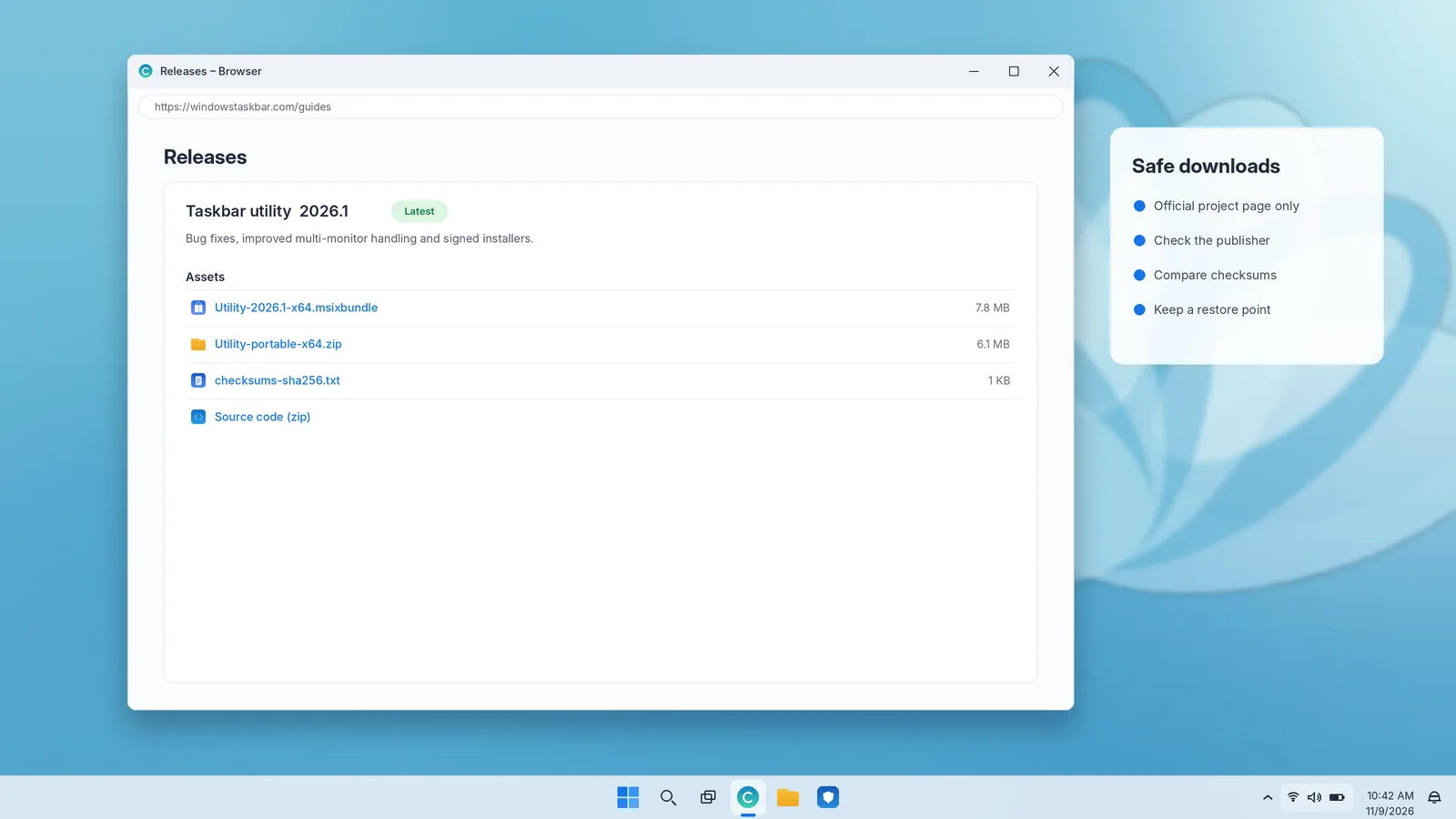
Search for "Windows taskbar download" and you will find plenty of sites offering exactly that, often with large green buttons. The truth is simpler: the Windows taskbar is part of Windows itself, and there is no official standalone download for it. What you can download are reputable tools that extend or restyle the taskbar, and, if you want the newest taskbar, Windows 11 itself from Microsoft. This guide explains what is genuinely available, how to choose a tool, and the routine that keeps your PC safe while you install one.
Why the taskbar is not a separate download
In Windows 10 and Windows 11 the taskbar is drawn by Windows Explorer (explorer.exe), the same process that runs the desktop and File Explorer. It relies on system components that exist only as part of a full Windows installation. Microsoft updates it through Windows Update, not as an app you can download on its own.
That has two practical consequences:
- A missing or broken taskbar is a repair job, not a download job. Restarting Windows Explorer, installing updates or repairing system files will bring it back; downloading a "taskbar" will not.
- Any site offering "the Windows taskbar" as an installer is offering something else. At best it is a third-party utility under a misleading name; at worst it is adware or malware.
Press Ctrl + Shift + Esc, select Windows Explorer and choose Restart. If that does not help, our guide to a disappeared Windows taskbar walks through every fix in order.
What you can legitimately download
There are three kinds of genuine downloads related to the taskbar:
- Windows 11 itself, which brings the Windows 11 taskbar, from Microsoft's official download page or through Windows Update.
- Windows updates, which deliver new taskbar features such as the position and smaller-size options Microsoft has been rolling out to Windows 11 in 2026.
- Third-party taskbar utilities, usually open-source projects on GitHub, that change how the taskbar looks or behaves beyond what Settings allows.
Reputable taskbar tools worth knowing
The tools below are long-standing, widely used and published with their source code on GitHub. Inclusion here is not an endorsement or a guarantee; each one modifies how Windows draws the taskbar, so read its documentation and check compatibility with your Windows version before installing.
TranslucentTB
A lightweight utility that makes the taskbar transparent, blurred or acrylic, with different appearances for states such as a maximized window or an open Start menu. It supports Windows 10 and Windows 11 and is available from the Microsoft Store as well as from its GitHub releases page. The Store version updates automatically, which makes it the easiest choice.
TaskbarX
Centers taskbar icons on Windows 10 and keeps them centered as apps open and close, with optional animations and bar styles. Its documentation states that it targets Windows 10. A paid Microsoft Store edition is available alongside the free GitHub release.
RoundedTB
Adds margins and rounded corners to the taskbar so it can float like a dock, with options for splitting it into segments. It is available from the Microsoft Store and GitHub, and its documentation notes compatibility details for different Windows versions.
ExplorerPatcher
Restores a Windows 10-style taskbar and other classic shell elements on Windows 11. Because it patches Explorer deeply, it is especially sensitive to Windows updates; the project publishes frequent releases to keep up. Read its README and release notes carefully, and be prepared to uninstall it if an update causes problems.
Windhawk
A customization platform that installs small, individually reviewable "mods", many of them for the taskbar, such as adjusting height, icon size or button behaviour. Each mod's source code is visible before you install it.
Microsoft PowerToys
Not a taskbar tool as such, but Microsoft's own open-source collection of productivity utilities, published on GitHub and in the Microsoft Store. Window layouts with FancyZones, a quick launcher and other tools complement the taskbar well and come straight from Microsoft.
| Tool | What it changes | Windows 10 | Windows 11 | Also in Microsoft Store |
|---|---|---|---|---|
| TranslucentTB | Transparency and blur | Yes | Yes | Yes |
| TaskbarX | Centered icons, styles | Yes | Only with a Windows 10-style taskbar | Yes (paid) |
| RoundedTB | Rounded, floating taskbar | Check project notes | Check project notes | Yes |
| ExplorerPatcher | Windows 10-style taskbar | No | Yes | No |
| Windhawk | Individual taskbar mods | Many mods | Many mods | No |
| PowerToys | Productivity utilities | Yes | Yes | Yes |
Our download page links each of these directly to its official source.
How to tell an official source from a copy
Popular open-source tools are frequently re-uploaded to download portals, sometimes wrapped in installers that add toolbars, adware or worse. Before you click download, confirm you are on the original source:
- GitHub: the repository should belong to the project's own account or organisation, have a long commit history, many stars and active issues, and publish files under Releases. Be wary of repositories created recently that contain only a download link.
- Microsoft Store: check the publisher name on the listing and confirm it matches the project. The Store handles installation and updates for you.
- Project website: follow links from the GitHub README rather than from search adverts.
A "download manager" that must run first, a file much larger than the project says it should be, an installer that asks to install unrelated software, or a page that claims to offer "the official Windows taskbar". Close the page if you see any of them.
A safe installation routine
Follow these steps for any tool that modifies the taskbar:
- Read the compatibility notes. Confirm the tool supports your exact Windows version. Find it with Windows + R, type
winverand press Enter. - Create a restore point. Search for Create a restore point, select your system drive and choose Create.
- Download from the official source, preferably the Microsoft Store listing or the GitHub Releases section.
- Verify what you downloaded. Where the project publishes checksums, compare them using
Get-FileHashin PowerShell. Right-click the file › Properties › Digital Signatures to see whether it is signed and by whom. - Scan it. Right-click the file and choose Scan with Microsoft Defender, or your installed security tool.
- Respect SmartScreen. A "Windows protected your PC" warning appears for new or less common files. Continue only if you are sure the file came from the official source.
- Install one tool at a time and check the taskbar works normally before adding another.
Keeping taskbar tools healthy after Windows updates
Windows updates change Explorer regularly, and tools that hook into it can stop working or, occasionally, stop the taskbar from loading. To stay ahead of that:
- Prefer Store versions, which update automatically.
- Watch the project's releases page or issue tracker around large Windows updates.
- If the taskbar breaks right after an update, close or uninstall the tool, restart Windows Explorer and check whether a newer release is available.
- Avoid running several taskbar modification tools at the same time unless their documentation says they are compatible.
Uninstalling a taskbar tool cleanly
- Open the tool and use its own disable, stop or reset option if it has one. This restores default taskbar settings before removal.
- Uninstall it from Settings › Apps › Installed apps (Windows 11) or Apps & features (Windows 10). For portable tools, delete their folder.
- Check Settings › Apps › Startup and Task Scheduler for leftover startup entries.
- Restart Windows Explorer or the PC.
- If anything still looks wrong, use the restore point you created before installing.
Try built-in settings before downloading anything
Many people reach for a download when Windows can already do what they want. Before installing a tool, check whether a built-in option covers it:
| You want to… | Built-in option |
|---|---|
| Move icons to the left on Windows 11 | Taskbar behaviors › Taskbar alignment › Left |
| Move the taskbar to another edge | Windows 10: Taskbar location on screen. Windows 11: Taskbar position on recent builds |
| Make the taskbar smaller | Windows 10: Use small taskbar buttons. Windows 11: smaller taskbar on recent builds |
| See window labels | Combine taskbar buttons › When taskbar is full or Never |
| Make the taskbar translucent | Personalization › Colors › Transparency effects |
| Colour the taskbar | Dark Windows mode plus accent colour on Start and taskbar |
| Hide the taskbar | Automatically hide the taskbar |
Since Microsoft has been returning several long-requested options to Windows 11 through updates, it is worth installing the latest Windows updates before deciding a tool is necessary.
Choosing a tool by goal
Most people looking for a taskbar download have one specific outcome in mind. Matching the tool to the goal keeps your system simpler:
- "I want a see-through or blurred taskbar." Try the built-in Transparency effects first; if you want more, TranslucentTB from the Microsoft Store.
- "I want centered icons on Windows 10." The built-in Links toolbar trick, or TaskbarX for automatic centering.
- "I want the old taskbar back on Windows 11." First try Left alignment, ungrouped buttons and, on recent builds, Taskbar position. If that is not enough, ExplorerPatcher, with the cautions above.
- "I want a smaller or differently behaving taskbar on Windows 11." Check Windows Update for the smaller taskbar option; otherwise a specific Windhawk mod.
- "I want to work faster with windows." Microsoft PowerToys, especially FancyZones, alongside the taskbar's own Snap and Task View features.
Store, installer or portable: which version to choose
Many taskbar tools come in several forms. Each has trade-offs:
| Format | Advantages | Watch out for |
|---|---|---|
| Microsoft Store | Vetted listing, automatic updates, clean uninstall | Occasionally lags behind the newest GitHub release |
| Installer from GitHub Releases | Newest version, often signed | You must update it yourself |
| Portable ZIP | No installation, easy to remove | Keep it in a permanent folder; startup tasks may point to its location |
For most people the Store version is the right default. Choose GitHub releases when you need a fix that has not reached the Store yet.
If your security software flags a taskbar tool
Tools that inject code into Explorer behave, technically, a little like malware, so security products sometimes flag them, particularly new releases that have not built up a reputation. A warning is not proof of a problem, but it is never something to dismiss automatically either:
- Confirm the file came from the official repository or Store listing.
- Check the project's issue tracker; false positives are usually reported and discussed quickly.
- Submit the file to your security vendor for analysis if you believe the detection is wrong.
- When in doubt, do not install it. A cosmetic change is never worth a real risk.
Downloading the Windows 11 taskbar
If what you really want is the Windows 11 taskbar on a Windows 10 PC, the only genuine way to get it is to upgrade to Windows 11. Eligible Windows 10 PCs can upgrade free through Windows Update, or by using the Installation Assistant or the Media Creation Tool from Microsoft's official Windows 11 download page. Our Windows 11 taskbar download guide covers requirements, the upgrade options and how to prepare, step by step.
Common myths about taskbar downloads
"Reinstalling the taskbar will fix a frozen taskbar"
There is nothing separate to reinstall. A frozen taskbar is fixed by restarting Windows Explorer, installing updates or repairing system files with DISM and sfc /scannow.
"A newer taskbar version can be downloaded for Windows 10"
Windows 10 no longer receives feature updates, so its taskbar will not gain new capabilities. New taskbar features arrive only in Windows 11, through Windows Update.
"Taskbar tools speed up Windows"
Cosmetic tools add a small background process; they do not make Windows faster. Speed gains come from a well-organised taskbar and keyboard shortcuts, not from extra software.
"If it is on GitHub, it is safe"
GitHub hosts excellent open-source projects, but anyone can create a repository. Check the account, history, stars, issues and releases before trusting a download.
Summary
- The Windows taskbar is built into Windows and is not available as a separate download.
- A missing taskbar needs repair, usually by restarting Windows Explorer, not a download.
- Reputable open-source tools can restyle or extend the taskbar. Get them only from GitHub or the Microsoft Store.
- Follow a routine: check compatibility, create a restore point, verify the file, install one tool at a time.
- For the newest taskbar features, keep Windows updated, or upgrade to Windows 11 through Microsoft.