
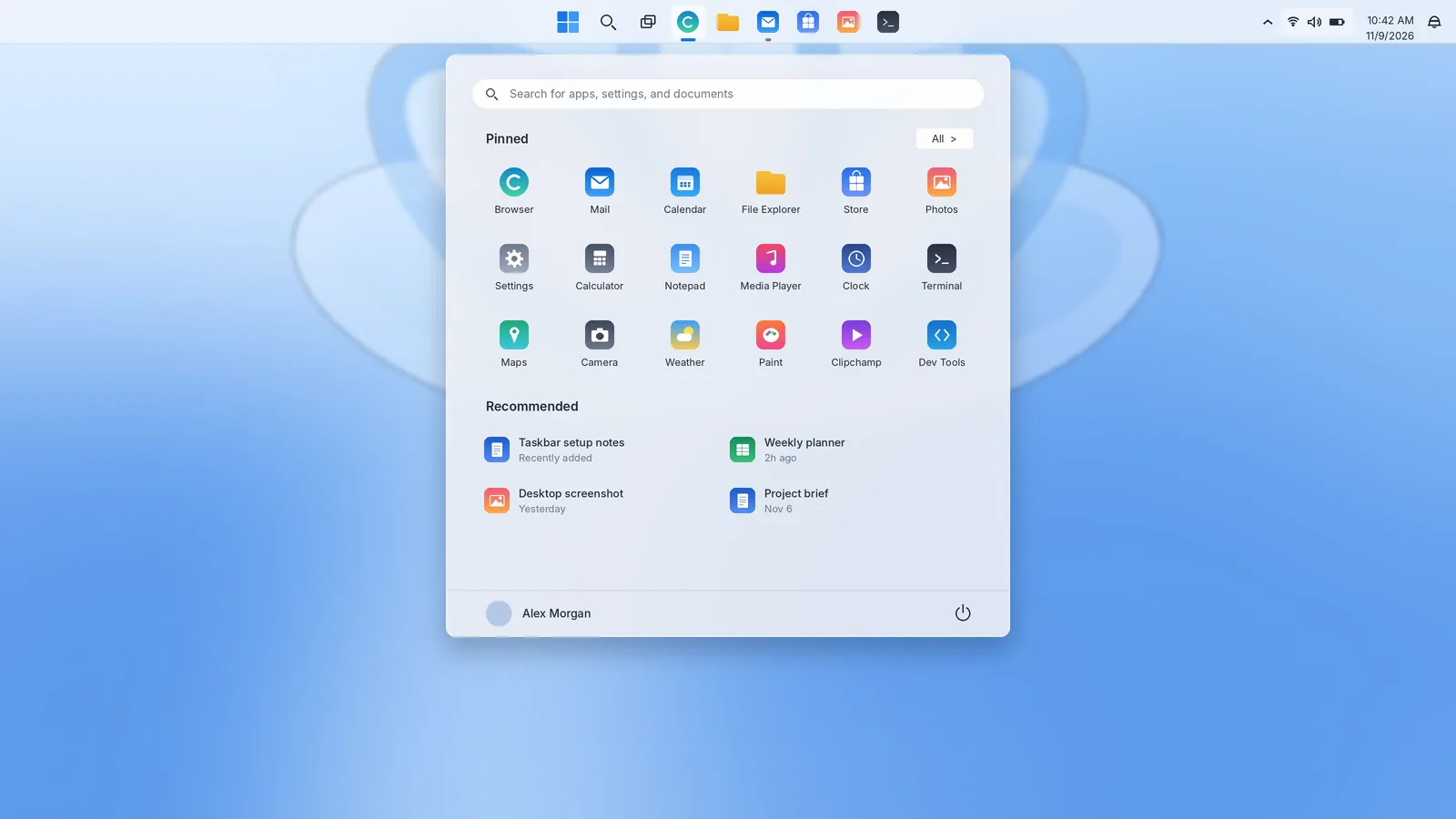
When Windows 11 arrived in 2021, its taskbar was the most visible change: icons moved to the center, the quick controls were redesigned, and several long-standing options disappeared. Since then Microsoft has been adding controls back through regular updates. In 2026 that includes the return of a movable taskbar and a smaller taskbar size. This guide covers the taskbar in Windows 11 as it stands today: every component, every setting, what changed from Windows 10 and how to arrange it for comfortable daily work.
A quick tour of the Windows 11 taskbar
On a fresh installation the taskbar runs along the bottom of the screen with its icons centered. From the middle outwards you will find:
- Start: the four-pane Windows logo. It opens the Start menu, with search at the top, pinned apps, the All apps list and a Recommended area.
- Search: shown as an icon, an icon with a label, or a full search box, depending on your settings.
- Task view: opens an overview of open windows and your virtual desktops.
- Pinned and running apps: a small line under an icon means the app is running; a longer blue line marks the app in focus.
- Widgets: usually in the far-left corner when icons are centered, showing weather and a board of widgets.
- System tray: at the right end. It holds the hidden icons arrow, app icons, network, volume and battery, followed by the date and time and the notifications bell.
Two things are worth noticing straight away. First, network, volume and battery act as a single button that opens Quick Settings. Second, the date and time open the notification center with a calendar underneath. Those two flyouts replace Windows 10's Action Center.
Where Windows 11 keeps its taskbar settings
Right-click an empty area of the taskbar and choose Taskbar settings, or open Settings with Windows + I and go to Personalization › Taskbar. The page is organised into four expandable groups:
- Taskbar items: buttons next to Start.
- System tray icons: pen, touch keyboard and virtual touchpad icons.
- Other system tray icons: icons belonging to installed apps.
- Taskbar behaviors: alignment, position, auto-hide, badges, grouping and multiple displays.
The exact list of options depends on your Windows 11 version and on which features Microsoft has enabled for your device. If an option in this guide is missing, install the latest updates from Settings › Windows Update. Many taskbar features are released gradually rather than to everyone on the same day.
Taskbar items: Search, Task view and Widgets
The Search menu offers four choices:
| Option | What appears on the taskbar |
|---|---|
| Hide | Nothing; use Start or Windows + S to search |
| Search icon only | A magnifying glass |
| Search icon and label | A compact pill with the word "Search" |
| Search box | A wider box you can click and type into |
The search box takes the most space but is the friendliest choice for people who search constantly. The icon is the best balance for most users. Task view and Widgets are simple on/off switches. Turning a button off does not disable the feature: Windows + Tab still opens Task View and Windows + W still opens Widgets.
System tray icons and the hidden icons menu
The System tray icons group controls Windows' own optional icons: the Pen menu for pen-enabled devices, the Touch keyboard (Never, Always, or When no keyboard is attached) and the Virtual touchpad. These are mainly useful on tablets and touch laptops.
Other system tray icons lists every app that has placed an icon in the tray. Switch an app on to keep its icon visible next to the clock; switch it off to send it to the hidden icons flyout behind the up arrow. Some builds also include a Hidden icon menu switch. Turning it off removes the arrow, so only the icons you chose stay visible. You can also arrange the tray directly by dragging icons between the flyout and the taskbar.
A good rule: keep an icon visible only if its appearance tells you something useful at a glance, such as sync status or a VPN connection. Everything else can live in the flyout.
Taskbar behaviors explained
Expand Taskbar behaviors to reach the options that shape how the taskbar looks and acts.
Taskbar alignment
Choose Center or Left. Center places Start and your apps in your natural line of sight on wide monitors. Left restores the Windows 10 arrangement, which many people prefer because Start is always in the same corner regardless of how many apps are open. Alignment only moves the icons; the tray stays at the right end.
Taskbar position
Recent Windows 11 updates are adding a Taskbar position menu with Bottom, Top, Left and Right. When the taskbar moves to the top, Start and Search open downward from that edge, and Windows adjusts other flyouts to match. You choose the position in Settings; the taskbar cannot be dragged into place the way it could in Windows 10. Some elements, such as the search box style and the smaller taskbar, may only be available with top or bottom positions. If you do not see the setting, your device has not received the feature yet.
Smaller taskbar
Alongside the position setting, Microsoft is adding an option to reduce the taskbar's height and icon size to reclaim screen space on small displays. Where available, it appears in Taskbar behaviors. Earlier Windows 11 builds have a fixed taskbar height.
Automatically hide the taskbar
Slides the taskbar off screen until you point at its edge. On touch devices, swipe in from that edge to bring it back.
Show badges and show flashing
Show badges on taskbar apps displays unread counts and status symbols on icons. Show flashing on taskbar apps lets an app highlight its button when it needs your attention. If an auto-hidden taskbar keeps popping up, flashing is often the reason.
Combine taskbar buttons and hide labels
Available since Windows 11 version 23H2, this offers Always (one icon per app, no labels), When taskbar is full and Never (a labelled button for each window). A separate option applies the same choice to taskbars on other displays. If you use several documents in one app at a time, When taskbar is full makes switching much faster.
Show my taskbar on all displays
Puts a taskbar on every connected monitor. The menu beneath it, When using multiple displays, show my taskbar apps on, decides where each app's button appears: all taskbars, the main taskbar plus the taskbar where the window is open, or only the taskbar where the window is open.
Share any window from my taskbar
In supported calling apps, this lets you hover over a taskbar button during a call and share that window with one click.
Select the far corner of the taskbar to show the desktop
Restores or removes the Show desktop strip at the far right end of the taskbar. Windows + D does the same from the keyboard.
Quick Settings and the notification center
Quick Settings opens when you select the network, volume or battery icons, or press Windows + A. It contains tiles such as Wi-Fi, Bluetooth, Airplane mode, Energy saver, Accessibility and Night light, plus sliders for brightness and volume. Select the pencil icon to add, remove or reorder tiles, and the arrow beside Wi-Fi or Bluetooth to choose a network or device without opening Settings. The volume slider's arrow lets you pick an audio output, which is the quickest way to switch between speakers and headphones.
The notification center opens when you select the date and time, or press Windows + N. Notifications appear above a monthly calendar. The bell icon at the end of the taskbar shows whether Do not disturb is on, and you can turn it on from the top of the notification center. To control which apps can notify you and when, go to Settings › System › Notifications.
Working with apps on the Windows 11 taskbar
Pinning works as you would expect. Right-click an app in Start or All apps and choose Pin to taskbar, or right-click a running app's button and choose the same option. Drag icons to reorder them, and remove them with Unpin from taskbar. You can also drag an app from the All apps list onto the taskbar to pin it.
Hover over a running app to see live thumbnails of its windows. Right-click it for its Jump List: recent and pinned files, app tasks and the option to close all its windows. Hold Shift while clicking an icon to open a new instance, or press Windows + a number for the app in that position.
Windows 11 also offers an End task option in the taskbar's right-click menu for apps that stop responding. Turn it on in Settings › System › For developers. It saves a trip to Task Manager when one program hangs.
Multitasking from the taskbar
Several of Windows 11's best multitasking features start at the taskbar:
- Task View (Windows + Tab) shows open windows and a strip of virtual desktops. Right-click a desktop to rename it or choose its background.
- Virtual desktops: hover over the Task view button to see your desktops and add a new one. Ctrl + Windows + ←/→ moves between them.
- Snap layouts: hover over a window's maximize button, or press Windows + Z, to arrange windows in a grid. Snapped windows can be restored together as a Snap group by hovering over one of them on the taskbar.
Together these turn the taskbar from a simple launcher into a workspace manager, especially on large monitors.
Colours and appearance
The taskbar's look is controlled in Settings › Personalization › Colors. Turn on Transparency effects for the translucent material behind the taskbar. To use your accent colour on the taskbar, set Choose your mode to Dark, or to Custom with the Windows mode set to dark, then turn on Show accent color on Start and taskbar. In light mode this switch is unavailable.
Themes in Settings › Personalization › Themes change colours, wallpaper and sounds together, which is a quick way to try a different overall look without adjusting each setting separately.
What changed from the Windows 10 taskbar
| Area | Windows 10 | Windows 11 |
|---|---|---|
| Icon alignment | Left | Center by default, Left optional |
| Position | Any edge, draggable | Bottom only at launch; Top, Left and Right returning through recent updates, set in Settings |
| Size | Resizable, small buttons | Fixed at launch; a smaller taskbar option is being added |
| Quick controls | Action Center | Quick Settings plus a separate notification center |
| Toolbars | Address, Links, Desktop, custom | Not available |
| Context menu | Many options | Shorter: Taskbar settings, Task Manager and a few others |
If you are moving from Windows 10, the biggest adjustments are usually alignment (one setting fixes it) and the split between Quick Settings and notifications. Within a few days most people find the new arrangement natural.
Recommended Windows 11 taskbar setups
For a single laptop screen
- Set Search to Search icon only and turn off Widgets if you do not use them.
- Choose the smaller taskbar if your build offers it, or turn on auto-hide for maximum space.
- Keep only sync, VPN or security icons visible in the tray.
For a large desktop monitor
- Keep icons centered, or move the taskbar to the left edge if your build supports positions, to use horizontal space.
- Set Combine taskbar buttons and hide labels to When taskbar is full to see window titles.
- Pin your daily apps and learn Windows + number shortcuts.
For multiple monitors
- Turn on Show my taskbar on all displays.
- Choose Taskbar where window is open so each screen lists only its own apps.
- Use Windows + Shift + ←/→ to move windows between screens.
Windows 11 taskbar keyboard shortcuts
| Shortcut | Action |
|---|---|
| Windows | Open or close Start |
| Windows + S | Open Search |
| Windows + Tab | Open Task View |
| Windows + A | Open Quick Settings |
| Windows + N | Open notifications and the calendar |
| Windows + W | Open Widgets |
| Windows + Z | Open Snap layouts for the active window |
| Windows + 1–0 | Open or switch to the app in that taskbar position |
| Windows + T | Move focus through taskbar apps |
| Windows + B | Move focus to the system tray |
| Windows + X | Open the Quick Link menu |
If the Windows 11 taskbar stops working
The reliable first fix is to restart Windows Explorer: press Ctrl + Shift + Esc, select Windows Explorer under Processes and choose Restart task. If the taskbar keeps freezing, check for updates, run sfc /scannow in Terminal (Admin), and remove recently installed taskbar modification tools. These utilities can break after a Windows update because they change parts of the shell that Microsoft does not expose for customization.
The Windows 11 taskbar has become far more configurable than it was at launch. Spend a few minutes in Taskbar behaviors and it will fit a laptop, a large monitor or a multi-screen desk equally well.